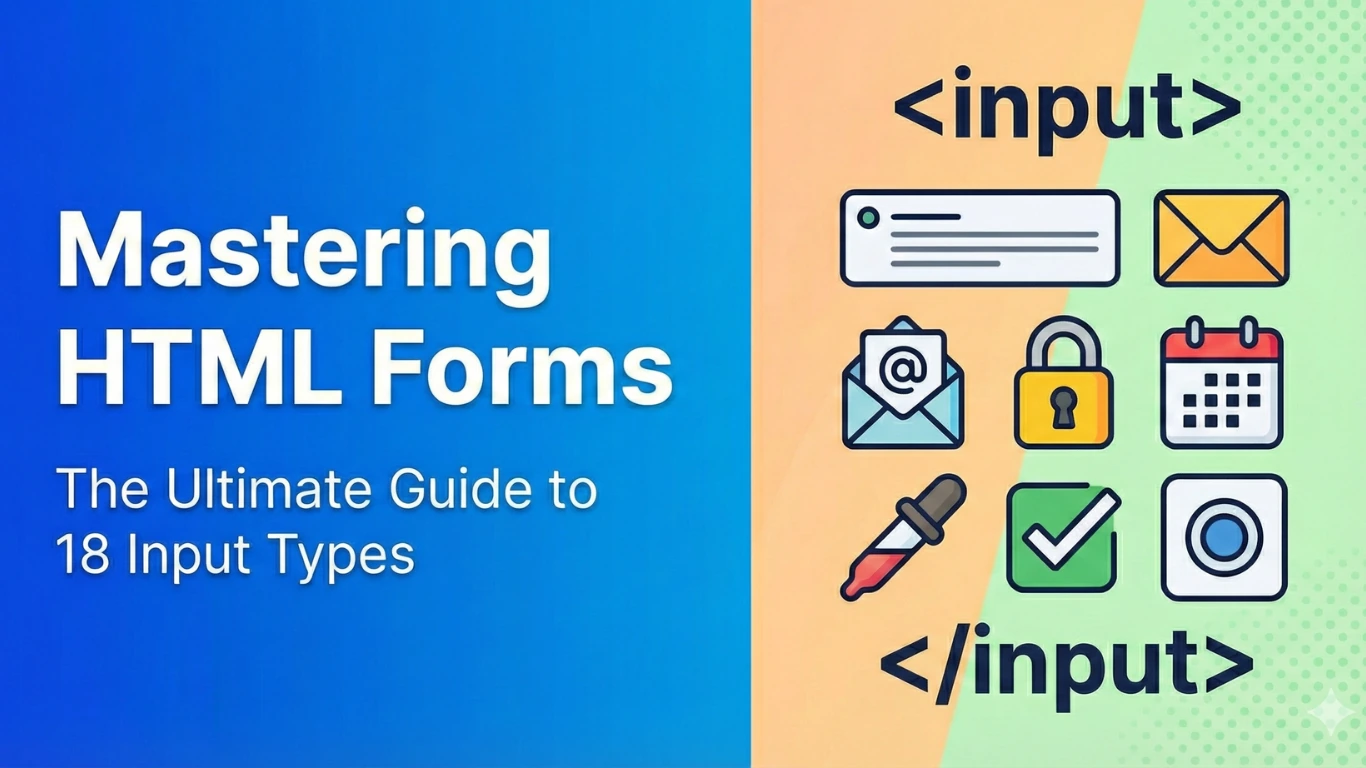

Forms are the backbone of user interaction on the web. Whether you are building a login page, a survey, or an e-commerce checkout, the HTML <input> tag is your most valuable tool.
While most beginners know text and password, HTML5 offers a wide variety of specific input types that improve user experience—especially on mobile devices where they can trigger specific keypads.
Forms are the backbone of user interaction on the web. Whether you are building a login page, a survey, or an e-commerce checkout, the HTML <input> tag is your most valuable tool.
In this guide, we will break down 18 essential HTML input types with code examples for each.
1. Text
This is the default input type. It creates a basic single-line text field for names, titles, or general data.
<input type="text" value="Hello World">Live OUTPUT:
2. Email
This field looks like a text box but includes built-in validation. On mobile, it opens the keyboard with the “@” symbol.
<input type="email" placeholder="info@gmail.com">Live Output:
3. Password
Masks the characters (usually with dots) to keep sensitive data secure.
<input type="password" value="123456">Live Output:
4. Telephone (Tel)
Used for phone numbers. It triggers the numeric keypad on mobile devices.
<input type="tel" value="+919876543210">Live Output:
5. Number
Restricts input to numbers only. Notice the small “spinner” arrows to increase/decrease the value.
<input type="number" value="26">Live Output:
6. Search
Functionally similar to text, but some browsers add a small “X” to clear the text quickly.
<input type="search" placeholder="Search here...">Live Output:
7. URL
Used for web addresses. Field for entering a URL. Mobile keyboards will often show a “.com” button.
<input type="url" value="https://learncodewp.com">Live Output:
8. File
Allows the user to select a file from their device to upload.
<input type="file">Live Output:
9. Hidden
This input is invisible. I have added a dashed box below to show where it would be, but the actual input inside takes up no space.
<input type="hidden" value="secret_ID_123">Live Output:
10. Button
A clickable button with no default behavior (usually used with JavaScript).
<input type="button" value="Click Me">Live Output:
11. Reset
A button that clears all data in a form (try typing in the text box below and hitting reset).
<form>
  <input type="text" value="Change me...">
  <input type="reset" value="Reset">
</form>
Live Output:
12. Submit
The button that sends the form data to the server.
<input type="submit" value="Submit">Live Output:
13. Radio
Used when a user must select exactly one option from a group.
<input type="radio" name="grp" checked> Option 1
<input type="radio" name="grp"> Option 2
Live Output:
14. Checkbox
Used when a user can select multiple options.
<input type="checkbox" checked> HTML
<input type="checkbox"> CSS
<input type="checkbox"> JavaScript
Live Output:
15. Range
Creates a slider control for selecting a value within a range.
<input type="range" min="0" max="100">Live Output:
16. Image
Acts as a submit button but uses a custom image.
<input type="image" src="icon.png" alt="Submit">Live Output:
17. Color
Opens a color picker for the user to select a hex color code.
<input type="color" value="#ff0000">Live Output:
18. Month
Allows the user to select a month and year.
<input type="month" value="2025-04">Live Output:
Conclusion
Using the correct input type not only helps with data validation on the server side but significantly improves the user experience (UX) by presenting the right interface controls. Next time you build a form, try moving beyond just text and password!