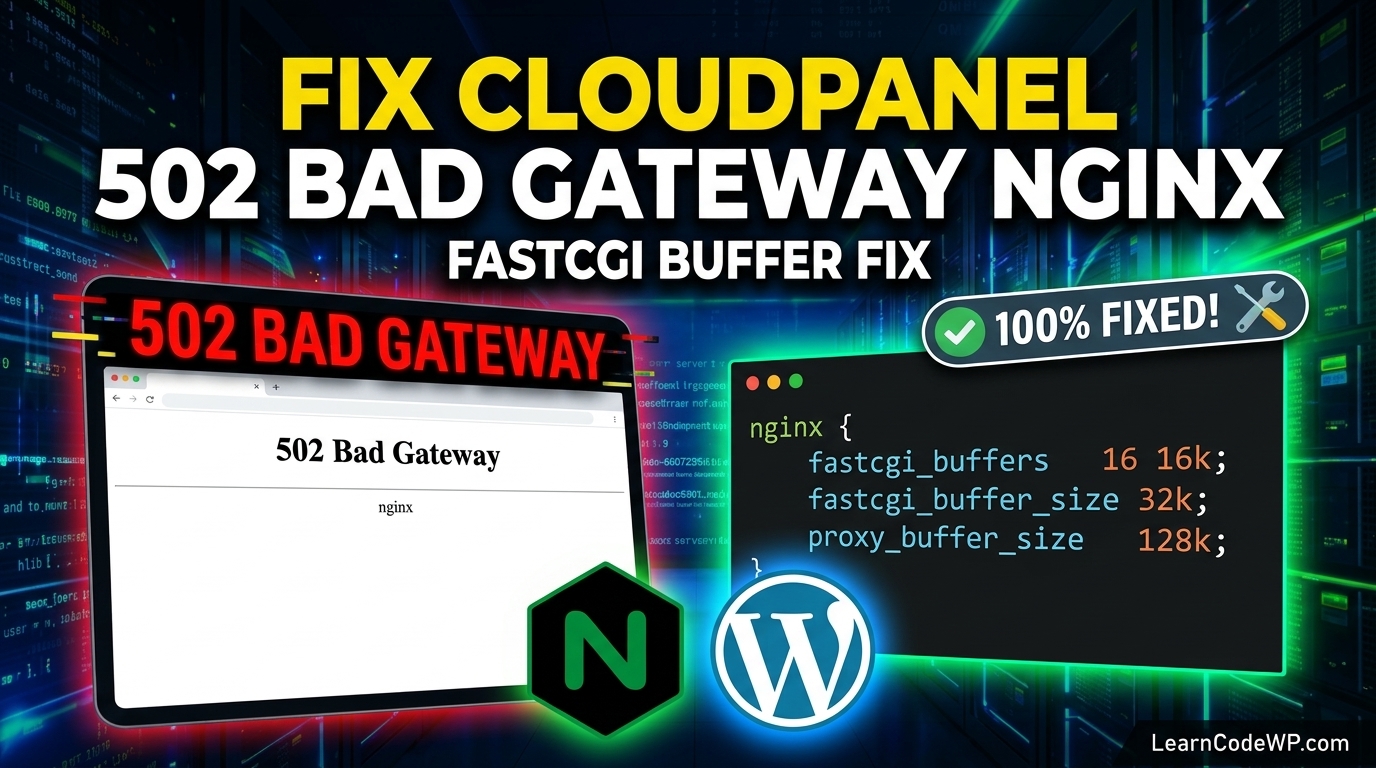

Encountering a 502 Bad Gateway error on your modern hosting stack can grind your development workflow to a complete halt. If you need to fix cloudpanel 502 bad gateway issues on your WordPress instance, you are likely dealing with a communication breakdown between the Nginx reverse proxy and the underlying PHP-FPM socket. Here is what catches developers off guard: CloudPanel runs lightning-fast out of the box, but aggressive resource limits or misconfigured upstream timeouts will instantly throw a 502 error during heavy database queries or plugin updates.
Understanding the Root Cause of CloudPanel 502 Errors
When a browser requests a page, Nginx acts as the gatekeeper. It forwards dynamic requests to PHP-FPM via a Unix socket or a TCP port. If PHP-FPM crashes, runs out of child processes, or takes longer to respond than Nginx’s configured timeout threshold, Nginx drops the connection and returns a 502 Bad Gateway status. You might have previously dealt with server configuration loops like when you had to fix cloudpanel nginx redirect loop errors, but a 502 points directly to execution stalls rather than routing misconfigurations.
A mistake I see developers make all the time in production is blindly restarting the entire server instead of inspecting the Nginx error logs. Always check your site-specific log file located in your site directory under logs/nginx_error.log. You will likely spot entries referencing connection refused or upstream timed out. Before changing any server parameters, you should also consult the official Nginx Documentation to understand how upstream proxy timeouts behave under heavy load.
Step-by-Step Guide to Fix CloudPanel 502 Bad Gateway
To permanently resolve this bottleneck, we need to adjust both our PHP-FPM pool configurations and our Nginx proxy timeouts. Let us walk through the exact terminal commands required to get your server healthy again.
Step 1: Restart PHP-FPM and Verify Service Status
Often, the PHP-FPM service for your specific PHP version has crashed due to memory exhaustion. SSH into your server as root and restart the service:
terminalsystemctl restart php8.2-fpm
systemctl status php8.2-fpm
If the service fails to restart, check for syntax errors in your custom PHP configuration overrides. Similar to how you manage memory leaks or fix runtime warnings—like trying to fix php 8 undefined array key issues—unhandled resource spikes will kill worker threads.
Step 2: Increase Nginx Timeout Directives
Default Nginx timeouts are often set to 60 seconds. If a complex WooCommerce checkout or a large database migration exceeds this limit, Nginx gives up. Open your site’s Nginx configuration template via CloudPanel or directly through your text editor.
nginx.conflocation ~ \.php$ {
    try_files $uri =404;
    include fastcgi_params;
    fastcgi_pass unix:/run/php/php8.2-fpm.sock;
    fastcgi_read_timeout 300s;
    fastcgi_send_timeout 300s;
}
Here is what actually happens under the hood: fastcgi_read_timeout tells Nginx to wait up to 300 seconds for PHP-FPM to finish executing the script before throwing a gateway error. Make sure to reference the PHP Manual when adjusting execution limits to ensure your PHP memory limit matches or exceeds these new server timeframes.
Comparison of Common CloudPanel Server Errors
To help you quickly diagnose future server hiccups, here is a breakdown of common gateway and routing anomalies:
| Error Code | Primary Root Cause | Immediate Remediation |
|---|---|---|
| 502 Bad Gateway | PHP-FPM crash or timeout | Restart PHP-FPM & bump proxy timeouts |
| 504 Gateway Time-out | Script execution exceeded limit | Increase max_execution_time |
| 413 Request Entity Too Large | Upload limit exceeded | Adjust client_max_body_size |
Troubleshooting & Production Gotchas
Don’t just copy-paste this blindly—check your server config first. If you modify Nginx configuration files manually on CloudPanel, remember that future panel updates might overwrite your custom vhost files. Always use CloudPanel’s custom template overrides where possible. Furthermore, ensure that your server’s RAM usage is not hitting 100% capacity during peak traffic hours, which forces the Linux kernel’s Out-Of-Memory (OOM) killer to terminate PHP worker pools.
Frequently Asked Questions
Why does the 502 error only happen on specific WordPress admin pages?
Heavy administrative tasks like bulk plugin updates, WooCommerce analytics queries, or XML sitemap generation consume excessive CPU and memory, quickly exhausting default PHP-FPM child processes.
How do I check if my PHP-FPM socket exists?
Run ls -l /run/php/ in your terminal to verify that the socket file is actively present and owned by the correct user and group permissions.
Will increasing timeouts hide underlying performance problems?
Yes. While increasing timeouts prevents premature 502 errors during long-running tasks, you should audit your WordPress plugins and database indexes to resolve slow queries at the application level.



1 thought on “How to Fix CloudPanel 502 Bad Gateway Error in WordPress”