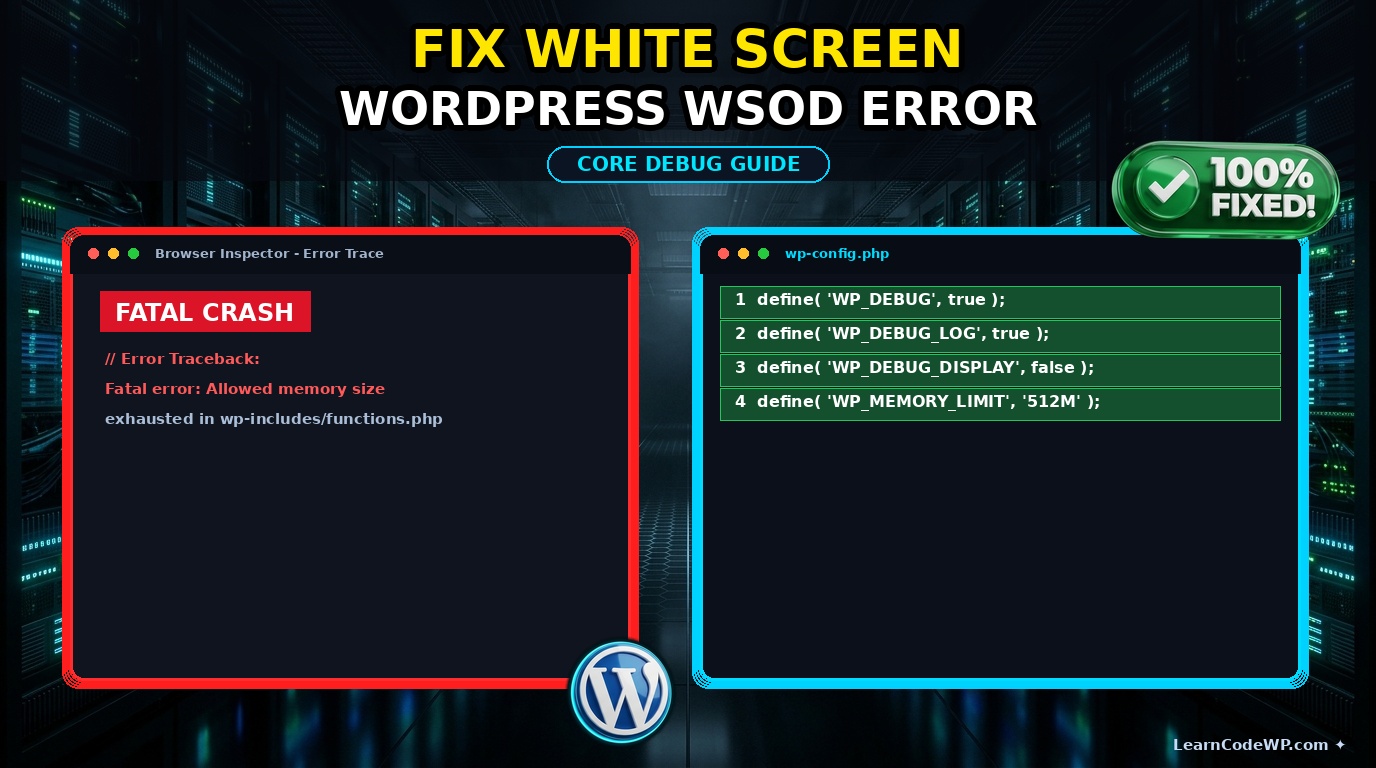

The white screen of death WordPress error remains one of the most terrifying issues a site administrator can encounter. One moment your custom block layout renders perfectly. The next second, your entire frontend and backend vanish into a completely blank, unhelpful white page. No error code, no stack trace, just absolute emptiness. Here is what catches developers off guard: this symptom usually stems from a fatal PHP memory exhaustion limit or an unhandled plugin conflict breaking the rendering pipeline.
Before you panic and revert your server via a snapshot, let’s look at why this happens and how to diagnose it properly. Under the hood, PHP is encountering a fatal error that halts execution mid-stream. Because your server configuration has error display disabled for production environments, the output buffer gets flushed as a blank response instead of rendering the stack trace. To trace the root cause, you need to lift the hood and inspect server logs directly or leverage specific debugging constants inside your configuration files.
Diagnosing the Root Cause via Error Logs
A mistake I see developers make all the time in production is guessing which plugin caused the crash instead of reading the system logs. You must check your web server error logs or enable WordPress debug mode to see what triggered the fatal exception. Sometimes, this issue ties back to memory limits similar to those discussed when you fix nginx upstream sent too big header errors on heavy traffic spikes.
To capture the exact fatal error, open your main configuration file and define your logging parameters explicitly. Don’t just copy-paste this blindly—check your server config first to ensure your file permissions allow log writing.
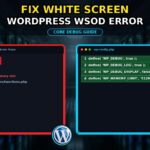
wp-config.phpdefine( 'WP_DEBUG', true );
define( 'WP_DEBUG_DISPLAY', false );
define( 'WP_DEBUG_LOG', true );
@ini_set( 'display_errors', 0 );
Let’s break down these configuration constants line by line. Enabling WP_DEBUG turns on the core debugging system. Setting WP_DEBUG_DISPLAY to false prevents raw errors from leaking publicly onto your frontend pages, which is a major security risk. Meanwhile, WP_DEBUG_DISPLAY paired with WP_DEBUG_LOG forces WordPress to write every warning, notice, and fatal error straight into a debug.log file inside your wp-content directory. For deeper reference on PHP functions and configurations, check out the official PHP Documentation.
Step-by-Step Fix for Memory Exhaustion and Fatal Crashes
If your debug log reveals an error stating that allowed memory size was exhausted, you need to allocate more RAM to your PHP process. This happens frequently when poorly optimized third-party plugins execute heavy database queries during initialization. You can override your default memory limit inside your core configuration or via your server’s php.ini file. For more advanced server-level redirects or routing conflicts, you might also want to review how to fix cloudpanel nginx redirect loop errors if you utilize modern control panels.
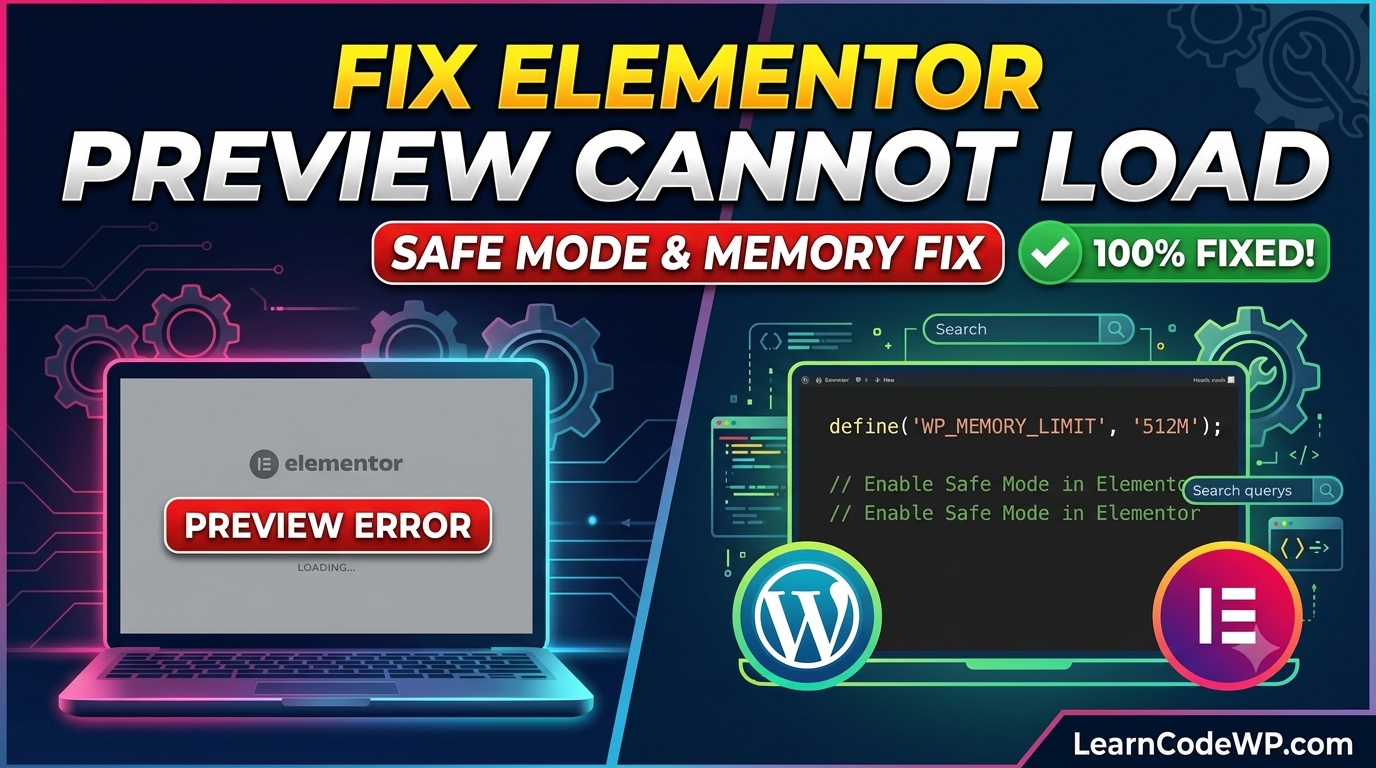
wp-config.php// Increase allocated PHP memory for WordPress core execution
define( 'WP_MEMORY_LIMIT', '512M' );

// Increase memory limit for the WordPress administration dashboard
define( 'WP_MAX_MEMORY_LIMIT', '1024M' );
When editing your site configuration, always refer to the official WordPress Developer Resources for best practices regarding constant declarations and memory allocation. Setting your memory limits too high on a shared hosting plan can lead to server instability, so scale these values according to your actual hardware capacity.
Comparative Analysis of WSOD Trigger Vectors
Different triggers require distinct troubleshooting approaches. Review the comparison table below to identify your specific crash signature.
| Trigger Vector | Primary Symptom | Diagnostic Method | Immediate Resolution |
|---|---|---|---|
| Memory Limit | Blank page on admin and frontend | Check error log for ‘Allowed memory size exhausted’ | Increase WP_MEMORY_LIMIT in wp-config.php |
| Plugin Conflict | Blank page after updating a plugin | Rename plugins directory via SFTP | Isolate and delete the offending plugin folder |
| Theme Syntax Error | Blank page after modifying functions.php | Check PHP error log for syntax parsing errors | Roll back file via SFTP or WP-CLI |
Troubleshooting & Gotchas
Even after bumping your memory limits and checking your logs, you might still experience a blank screen due to aggressive server-side caching or OPcache retention. Always flush your object cache and restart your PHP-FPM service after deploying code fixes. If you run OPcache, outdated bytecode might still be executing in memory. Execute a service restart via SSH to ensure your changes take effect immediately across all worker threads.
Frequently Asked Questions
Why is my WordPress admin dashboard working, but the frontend is blank?
This usually indicates a fatal error isolated within your active theme’s template files, such as single.php or header.php, rather than a global core failure. Inspect your theme files or switch to a default theme via database access.
Can a corrupted .htaccess file trigger a white screen?
Yes. Malformed rewrite rules or conflicting Apache directives can prevent proper request routing, resulting in a blank response. Regenerate your permalinks or reset your .htaccess file to default WordPress rules.
How do I disable all plugins without access to the dashboard?
Connect to your server using SFTP or SSH, navigate to your wp-content directory, and temporarily rename the plugins folder to plugins_old. This forces WordPress to deactivate all plugins instantly.