
Few things frustrate a developer more than loading up the Gutenberg editor only to find you need to fix block validation failed wordpress errors on your custom blocks. You are greeted with that dreaded warning box: “This block contains unexpected or invalid content.” For client sites, this looks incredibly unprofessional. For you, it means digging through the browser console to figure out why React and the WordPress database are fighting over a few strings of HTML.
This issue isn’t a random bug. It is a built-in safety mechanism. Here is what actually happens under the hood: WordPress Gutenberg saves your block’s output as raw HTML directly inside the post_content column of your database. When the editor loads, Gutenberg’s parser runs your JavaScript block’s save() function again, generates a virtual DOM representation, and compares it to the saved HTML. If there is even a single missing class, an extra space, or an unclosed tag, the parser throws its hands up and declares the block invalid.
Why Does the Fix Block Validation Failed WordPress Error Occur?
A mistake I see developers make all the time in production is pushing a block update that changes the HTML structure without telling WordPress how to handle the old markup. When you modify your custom block’s JSX structure in save.js, any post saved using the old structure immediately breaks. The block validation engine is incredibly strict.
The typical validation failure is triggered by three main culprits:
- Markup Discrepancy: A class, attribute, or tag was added, removed, or reordered in your React code but not updated in existing database rows.
- Whitespace and Formatting: Minification tools or server-side filters stripping out spaces or changing double quotes to single quotes. This can sometimes be related to backend parsing errors. If your server throws hidden warnings, you might need to fix PHP 8 undefined array key issues that contaminate the REST API responses.
- Content Filtering: Security plugins or server configurations altering the HTML output before it is saved.
Step-by-Step Guide to Fix Block Validation Failed WordPress Errors
Let’s walk through how to diagnose and write clean deprecation rules to resolve this issue forever. Don’t just copy-paste this blindly—check your server config and your browser console first.
Step 1: Inspect the Browser Console
Open your browser’s Developer Tools (F12) and look at the Console tab. WordPress outputs a highly detailed log when a block validation fails. You will see something like this:
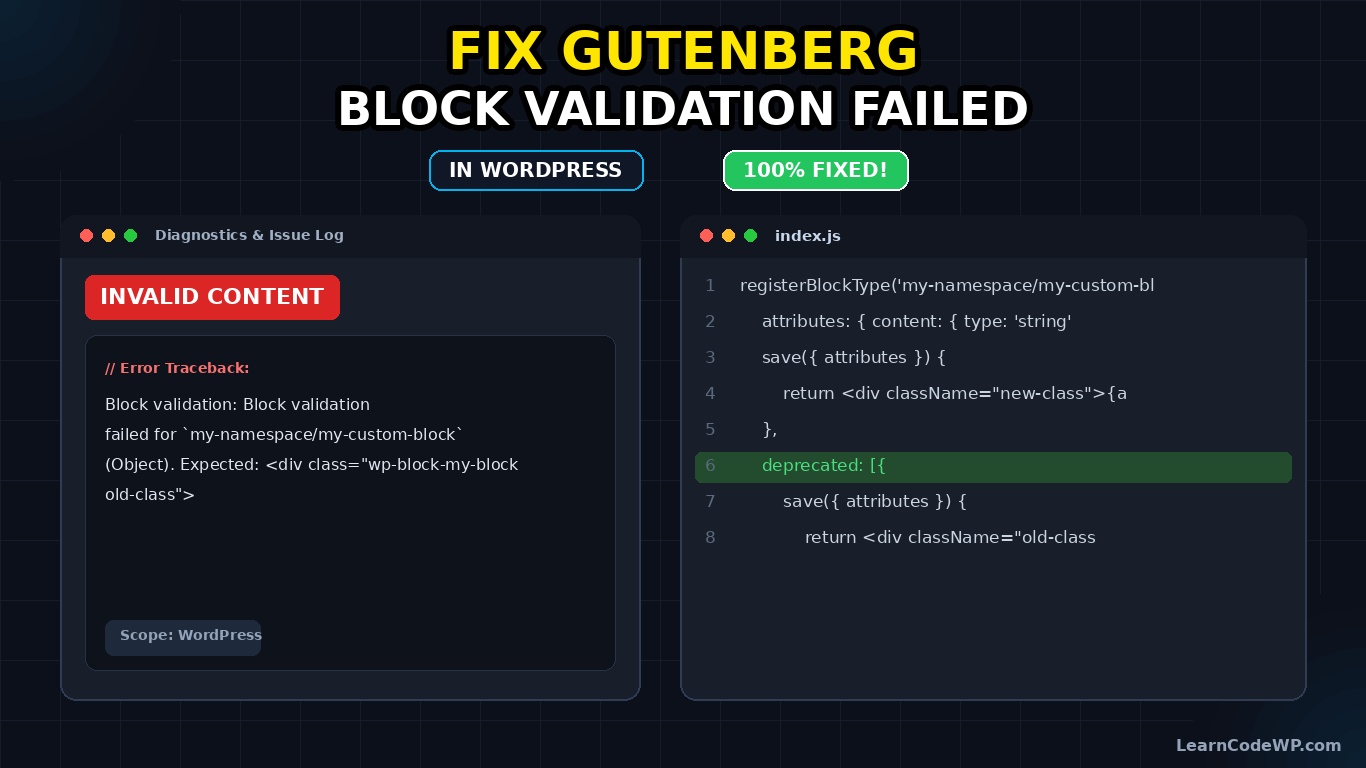
console-error.txtBlock validation: Block validation failed for `my-namespace/my-custom-block` (Object). This block contains unexpected or invalid content.
Expected: <div class="wp-block-my-block old-class">Hello World</div>
Actual:   <div class="wp-block-my-block new-class">Hello World</div>
This output tells you exactly what the parser expected to find in the database versus what your updated JS code actually generated. To resolve this without forcing users to click “Attempt Block Recovery” on every page, we must implement block deprecation.
Step 2: Add Deprecated Versions to Your Block
To dynamically fix block validation failed wordpress errors, we use the deprecated property inside our block configuration. This tells Gutenberg: “If you find this old HTML format, parse the attributes from it, and silently upgrade it to the new format.”
Here is how to structure your block’s JavaScript file using the official WordPress Block Editor Developer Documentation standards:
index.jsimport { registerBlockType } from '@wordpress/blocks';
import { useBlockProps } from '@wordpress/block-editor';

registerBlockType('my-namespace/my-custom-block', {
    title: 'My Custom Block',
    icon: 'universal-access-alt',
    category: 'design',
    attributes: {
        content: {
            type: 'string',
            source: 'html',
            selector: 'div',
        },
    },
    edit({ attributes, setAttributes }) {
        const blockProps = useBlockProps();
        return (
            <div { ...blockProps }>
                <p>Edit Content:</p>
                {/* Input fields go here */}
            </div>
        );
    },
    save({ attributes }) {
        const blockProps = useBlockProps.save({
            className: 'wp-block-my-block new-class'
        });
        return (
            <div { ...blockProps }>
                { attributes.content }
            </div>
        );
    },
    // This is where we handle the old markup styles safely
    deprecated: [
        {
            attributes: {
                content: {
                    type: 'string',
                    source: 'html',
                    selector: 'div',
                },
            },
            save({ attributes }) {
                // The old HTML structure we are deprecating
                return (
                    <div className="wp-block-my-block old-class">
                        { attributes.content }
                    </div>
                );
            },
        }
    ]
});
How the Deprecation Array Works
Here is what catches developers off guard: when Gutenberg parses a page, it loops through your deprecated array from top to bottom. It compares the database HTML to each deprecated save() function.
Once it finds a match, it extracts the attributes using that old schema, passes them to your current edit() and save() functions, and marks the block as “dirty.” The next time a user saves the post, WordPress writes the brand-new HTML structure to the database. The validation error vanishes without any manual intervention.
If you are managing complex block ecosystems with custom patterns, you might also want to clean up your editor interface. Look into how to remove core block patterns wordpress functions php to keep your custom blocks front and center for content editors.
Comparison of Block Validation States
Understanding how the block editor treats different validation states will help you plan schema changes before shipping updates.
| State | Behavior in Editor | Database Impact | Action Required |
|---|---|---|---|
| Valid | Loads perfectly. No console warnings. | Matches current JS save output. | None. |
| Deprecated Match | Loads perfectly. Silent upgrade behind the scenes. | Rewritten on next post save. | Keep deprecated code in JS. |
| Invalid / Failed | Shows “Unexpected content” warning box. | Remains broken until manually recovered. | Implement deprecation or recover block. |
Troubleshooting & Gotchas
If you have implemented the deprecation array and are still seeing validation errors, review these common edge cases:
1. Browser Caching and Build Assets
The block editor runs entirely in the browser. If your built index.js file is cached by your browser, Cloudflare, or a local server optimization plugin, your new deprecation rules won’t run. Always hard-refresh your browser (Ctrl+F5 or Cmd+Shift+R) and clear your asset build caches (e.g., run npm run build again).
2. Dynamic Blocks vs. Static Blocks
If your block is registered as dynamic using a PHP render callback (e.g., render_callback in register_block_type), your JS save() function should return null. Dynamic blocks do not save HTML to the database; they save only JSON comments containing attributes. If you get a validation error on a dynamic block, check if you accidentally started returning HTML from your JS save() function.
3. Third-Party Plugin Filters
Some optimization and security plugins filter HTML on save. For example, they might strip out specific data attributes or format inline CSS. Check if your production site has optimizations enabled that are missing on your local development server.
Frequently Asked Questions
Does “Attempt Block Recovery” lose any data?
Usually, no. Attempting block recovery forces Gutenberg to re-render the block using the current JS save() output. However, if attributes were stripped or structured differently, some custom user entries might be lost. Writing deprecations is always the safer route.
Can I have multiple deprecated versions for a single block?
Yes! The deprecated property is an array. You can stack as many old block structures as you need over the lifecycle of your plugin. Gutenberg will evaluate them in order from first to last.
How do I find validation errors programmatically?
You can monitor the MDN Console APIs or hook into WordPress JS filters like blocks.registerBlockType to log validation events directly to your application tracking tools.