
To fix elementor preview could not be loaded errors on a production site, you must look beyond simple cache clearing. This frustrating error halts your workflow and points to a deeper architectural failure. It is not just a visual glitch. It is a breakdown in the communication loop between the Elementor editor canvas, your WordPress database, and the server’s rendering engine.
Sometimes, this error manifests as a complete system lock, closely related to the fix elementor infinite loading loop issue that occurs when the editor’s React engine crashes. In this hands-on guide, we will bypass the generic advice and look at the exact server configurations, PHP variables, and script conflicts that trigger this error.
Why Does the Fix Elementor Preview Could Not Be Loaded Error Occur?
Here is what actually happens under the hood: Elementor relies heavily on the WordPress REST API and admin-ajax.php to load the builder interface dynamically. When you open a page, Elementor spins up an iframe to render your theme layout. If this iframe fails to load or returns an error, the editor throws the “Preview Could Not Be Loaded” modal.
A mistake I see developers make all the time in production is ignoring the browser’s developer console. When you attempt to fix elementor preview could not be loaded issues, check the browser console first. You will typically find one of three culprits:
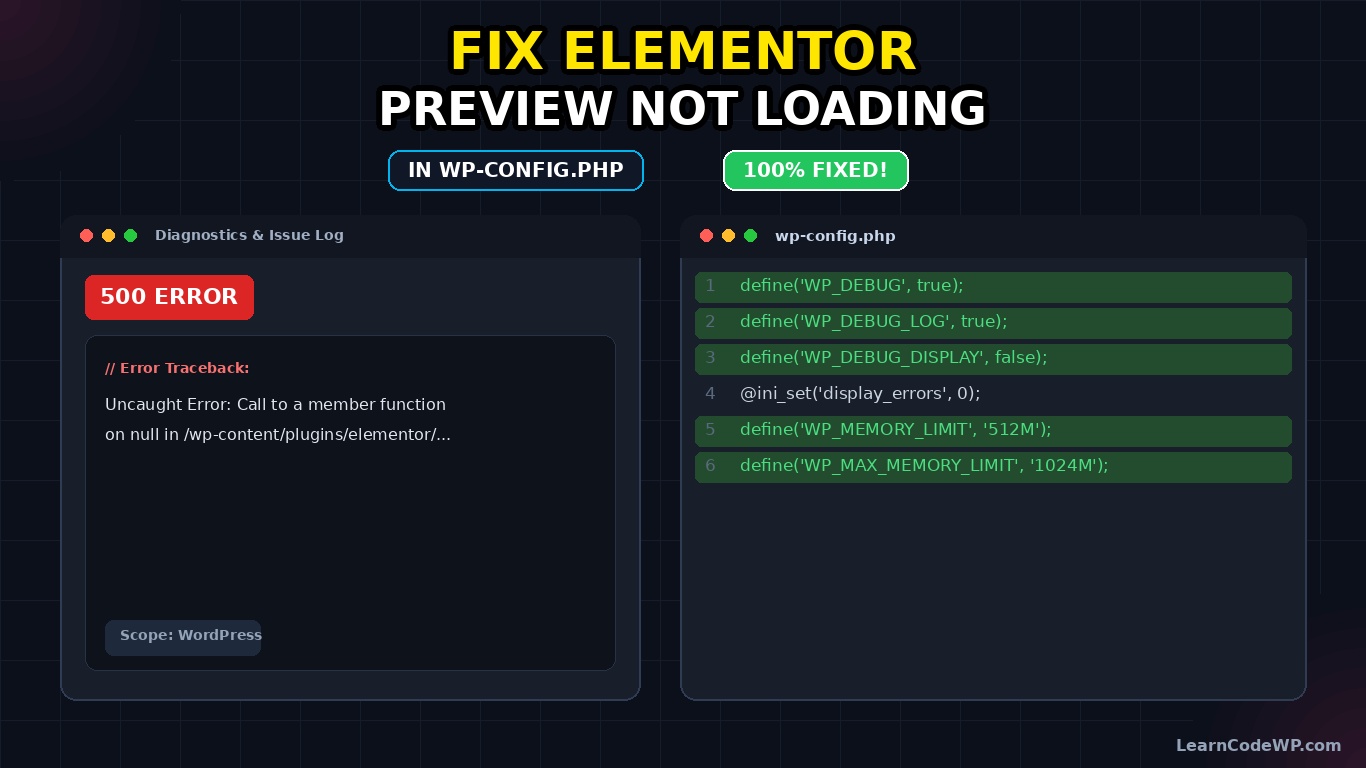
- HTTP 500 Internal Server Error: A PHP fatal error crashed the background rendering process.
- HTTP 403 Forbidden: A security rule (like ModSecurity or Cloudflare) blocked the admin-ajax.php request.
- Mixed Content Warnings: Your SSL setup is misconfigured, causing the HTTP iframe to be blocked on an HTTPS page.
Step-by-Step Fixes for Developers
Let’s dive into the practical code adjustments and server tweaks required to resolve this issue permanently.
How to Fix Elementor Preview Could Not Be Loaded via WP-Config
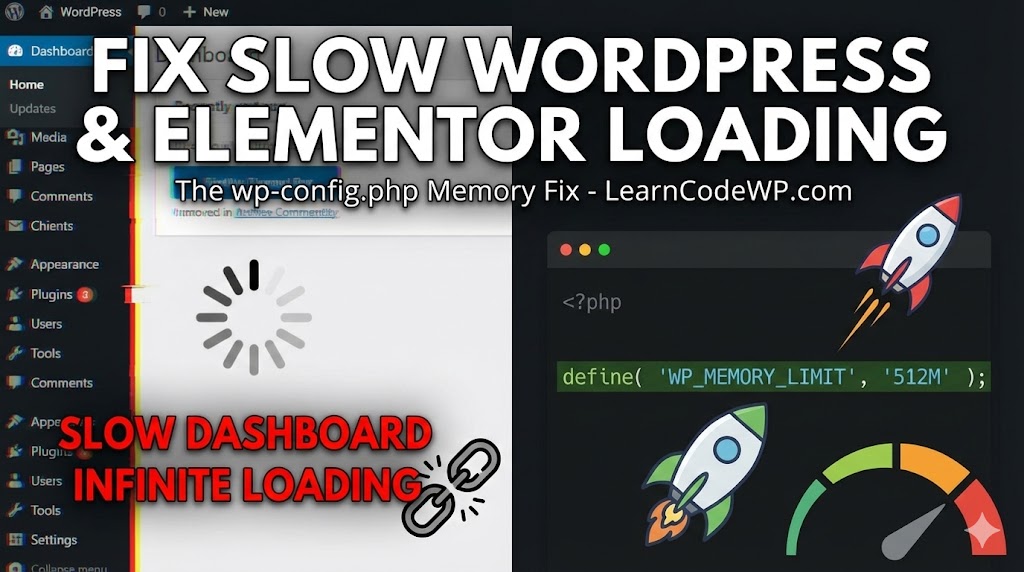
Most occurrences of this error stem from PHP memory exhaustion. Elementor is a resource-heavy application. If your site runs on the default 40MB or 64MB memory limit, the preview engine will crash silently. This is often the quickest way to fix elementor preview could not be loaded errors caused by low-tier shared hosting.
Open your wp-config.php file and insert the following lines just before the line that says /* That’s all, stop editing! Happy publishing. */:
wp-config.phpdefine('WP_MEMORY_LIMIT', '512M');
define('WP_MAX_MEMORY_LIMIT', '1024M');

// Enable debug logging to catch silent PHP errors
define('WP_DEBUG', true);
define('WP_DEBUG_LOG', true);
define('WP_DEBUG_DISPLAY', false);
@ini_set('display_errors', 0);
Here is what catches developers off guard: setting WP_MEMORY_LIMIT in WordPress will do nothing if your system’s php.ini caps memory at a lower limit. Don’t just copy-paste this blindly—check your server config first. Ensure your memory_limit in your PHP configuration is set to at least 512M.
Fixing PHP Compatibility and Warning Crashes
A modern PHP upgrade can trigger warnings; if you need to fix php 8 undefined array key notices, these minor warnings can break the JSON payload Elementor expects. If WP_DEBUG_DISPLAY is set to true, PHP will inject warning text directly into the HTML response, corrupting the document structure and causing the preview engine to fail.
To prevent this, we use the code above to write errors to wp-content/debug.log while keeping the frontend display clean. Check the PHP Official Documentation on error reporting levels to fine-tune production deployments.
Resolving Server Security and Rule Blocks
If you see a 403 Forbidden error in your network tab while loading the preview, your server firewall is blocking the requests. Security suites like ModSecurity, Wordfence, or Cloudflare often flag Elementor’s dynamic save actions as potential XSS (Cross-Site Scripting) attacks.
Incorrect rewrite rules or SSL mismatches will block the editor. This is highly similar to the steps needed to fix cloudpanel nginx redirect loop problems on VPS environments. If you are using Nginx, ensure your configuration does not strip necessary query parameters from admin-ajax.php. Here is a standard Nginx location block helper to ensure admin-ajax.php is processed correctly:
nginx.conflocation ~* ^/wp-admin/admin-ajax\.php$ {
    fastcgi_read_timeout 300;
    include fastcgi_params;
    fastcgi_pass unix:/var/run/php/php8.1-fpm.sock;
}
Make sure to adjust the socket path to match your specific PHP-FPM version. For deeper routing structures, consult the WordPress Developer Resources on handling AJAX requests.
Technical Breakdown of Causes and Resolutions
To help you diagnose the issue quickly, here is a breakdown of common configurations that trigger the preview load failure:
| Root Cause | Diagnostic Indicator | Primary Resolution |
|---|---|---|
| PHP Memory Exhaustion | 500 Internal Server Error in Console | Increase wp_memory_limit to 512M in wp-config.php |
| Silent PHP Warnings/Fatals | Malformed JSON in admin-ajax response | Disable WP_DEBUG_DISPLAY and fix code deprecations |
| Admin-Ajax Blocked by Server | 403 Forbidden or 302 Redirect | Whitelist Elementor actions in ModSecurity/Cloudflare |
| SSL/Mixed Content Mismatch | Blocked loading mixed active content | Install Really Simple SSL or update URLs in Elementor Tools |
Troubleshooting & Gotchas
Before you tear your hair out, remember that caching layers can keep serving the broken preview even after you fix the underlying issue. Always clear your object cache (Redis or Memcached), purge your CDN (Cloudflare), and use Elementor’s built-in tool under Elementor > Tools > Regenerate CSS & Data. This forces Elementor to rebuild the static CSS files and clear outdated document references.
By following these structured steps, you can fix elementor preview could not be loaded issues permanently, ensuring a fast, stable, and error-free editing environment for your development workflow.
Frequently Asked Questions
Q1: Will switching to Elementor Safe Mode fix this error permanently?
No. Safe Mode is strictly a diagnostic tool. It temporarily disables all third-party plugins and your theme to see if the editor loads. If it works in Safe Mode, you have a plugin conflict or a theme error that you must find and resolve.
Q2: Why does the preview fail only on certain pages?
This happens when a specific page contains a broken shortcode, an unclosed HTML tag, or a custom widget throwing a PHP error. Isolate the page’s custom code or templates to find the culprit.
Q3: How does Cloudflare Rocket Loader affect the Elementor preview?
Rocket Loader defers the loading of JavaScript files, which completely breaks Elementor’s execution order. You should create a Page Rule in Cloudflare to exclude *yourdomain.com/wp-admin/* from Rocket Loader entirely.