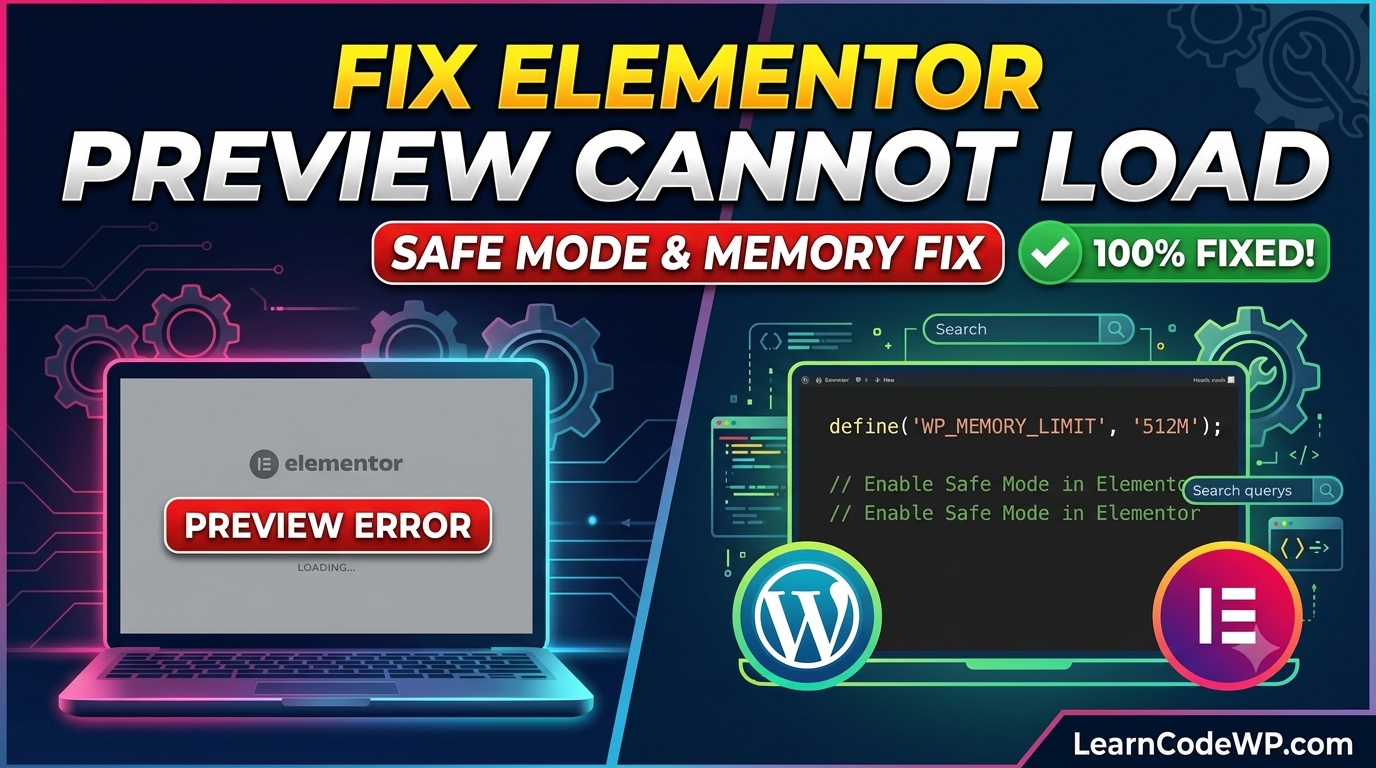

Learning how to fix elementor error 500 is an inevitable rite of passage for any WordPress engineer managing high-traffic client sites. Here is what catches developers off guard: that dreaded red notification box or blank screen rarely points to a single issue. Instead, it acts as a generic HTTP wrapper masking everything from exhausted memory limits to fatal PHP exceptions triggered during REST API admin-ajax requests.
A mistake I see developers make all the time in production is blindly purging browser caches or toggling maintenance modes without inspecting raw server logs first. Before you touch anything, you must understand why this occurs under the hood. When Elementor attempts to save post meta or compile dynamic CSS, it executes heavy AJAX routines. If your PHP process hits the execution time limit or exhausts allocated RAM, Nginx or Apache immediately drops the connection and returns a 500 Internal Server Error.
Why is Elementor so slow and prone to Server Error 500?
Performance bottlenecks and HTTP 500 failures usually share the same root cause. When your hosting environment enforces strict resource caps, heavy page builders struggle to complete background payload processing. To address underlying server constraints effectively, you should also review our guide on how to fix php fatal error in wordpress (allowed memory size exhausted), which details how to properly scale resource limits across your server stack.
Step-by-Step Guide: How to Fix Elementor Error 500
Let us walk through a battle-tested diagnostic workflow to isolate and eliminate the error once and for all. Don’t just copy-paste this blindly—check your server config first to ensure your PHP version and memory ceilings align with official WordPress Server Requirements.
Step 1: Elevate PHP Memory Limits in wp-config.php
The default WordPress memory limit is often too restrictive for complex page builders. Open your root configuration file and explicitly define a higher RAM allocation.
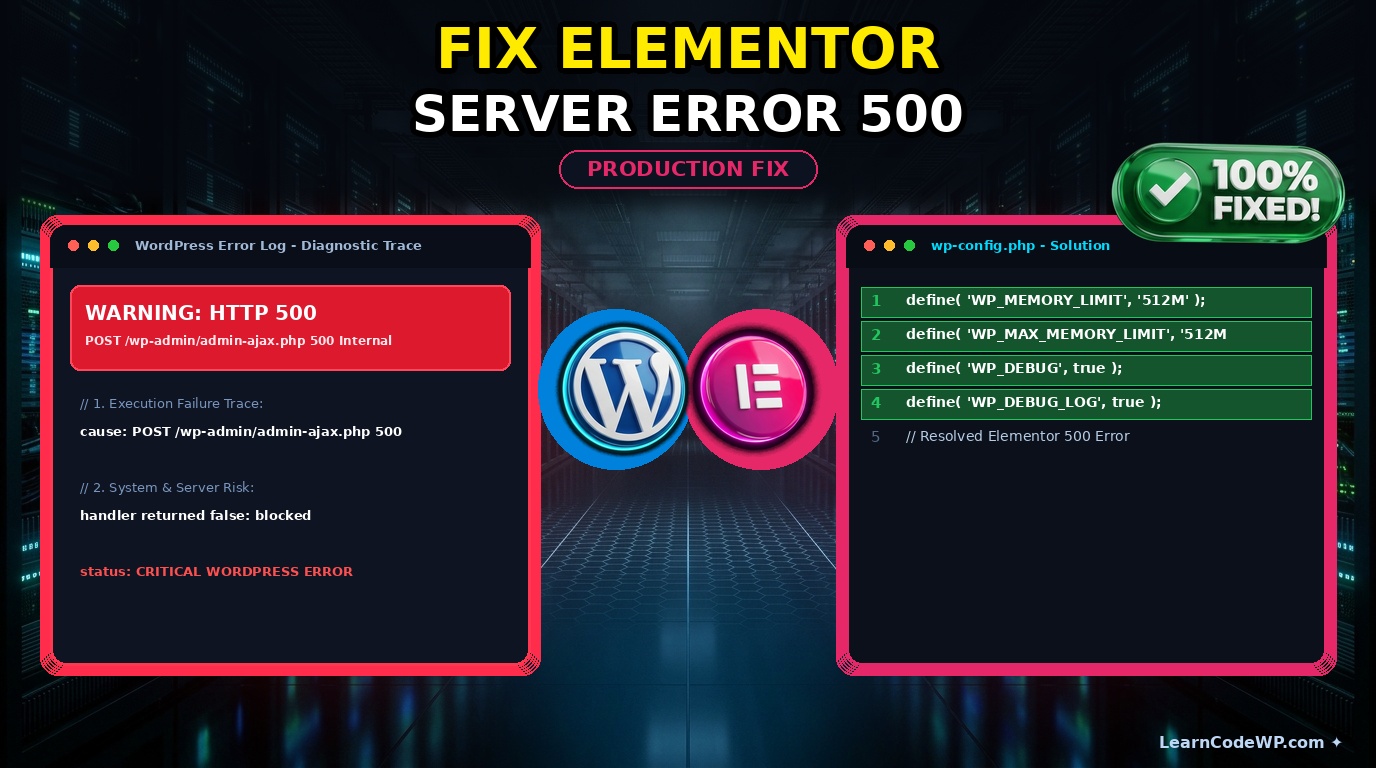
wp-config.phpdefine( 'WP_MEMORY_LIMIT', '512M' );
define( 'WP_MAX_MEMORY_LIMIT', '512M' );

// Enable WP_DEBUG during active troubleshooting
define( 'WP_DEBUG', true );
define( 'WP_DEBUG_LOG', true );
Line-by-line breakdown: The first declaration increases the front-end memory cap to 512 megabytes. The second declaration ensures the WordPress administration dashboard and AJAX calls receive the same generous allocation. Enabling debug logging allows you to inspect actual syntax or memory faults in your debug.log file.
Step 2: Inspect Nginx or Apache Error Logs
If your screen simply goes blank instead of displaying a clean error message, your server configuration is likely suppressing errors. If you run a modern LEMP stack, ensure your reverse proxy headers aren’t overflowing by consulting our tutorial on how to fix nginx upstream sent too big header in wordpress.
error.log2026/03/30 10:15:22 [error] 1421#1421: *8972 upstream timed out (110: Connection timed out)
while reading response header from upstream, client: 192.168.1.50,
server: example.com, request: "POST /wp-admin/admin-ajax.php HTTP/1.1",
upstream: "fastcgi://unix:/run/php/php8.2-fpm.sock:"
Here is what actually happens under the hood: PHP-FPM execution exceeds the max_execution_time directive defined in your php.ini file, causing Nginx to prematurely drop the socket connection.
Diagnostic Comparison Table
| Error Symptom | Primary Root Cause | Immediate Remediation |
|---|---|---|
| 500 Error on Save | Exhausted Memory Limit | Increase WP_MEMORY_LIMIT to 512M |
| 500 Error on Editor Load | PHP Execution Timeout | Raise max_execution_time in php.ini |
| Blank White Screen | Fatal PHP Exception | Enable WP_DEBUG_LOG and check logs |
Troubleshooting & Gotchas
Always verify your file ownership permissions after editing server configurations. If your web user (www-data or nginx) cannot read your custom configuration files, PHP processes will silently crash. Furthermore, clear your object cache and CDN layers (such as Cloudflare) because cached invalid REST responses can mimic persistent server faults even after you apply a valid code fix.
Frequently Asked Questions
Why is Elementor not letting me edit my page?
This usually stems from a JavaScript conflict in the browser console or a REST API blockage. Verify that your site URL matches your SSL settings and check your browser dev tools for blocked admin-ajax scripts.
Why is Elementor so hard to use when saving large layouts?
Large DOM trees require substantial database queries and JSON serialization payloads. If your MySQL max_allowed_packet setting is too low, saving massive templates will trigger sudden database write failures.
How do I know if my hosting provider is causing the 500 error?
Check your hosting control panel’s resource usage monitor. If CPU usage spikes to 100 percent or memory limits max out the exact second you hit update in Elementor, your hosting tier needs a resource upgrade.