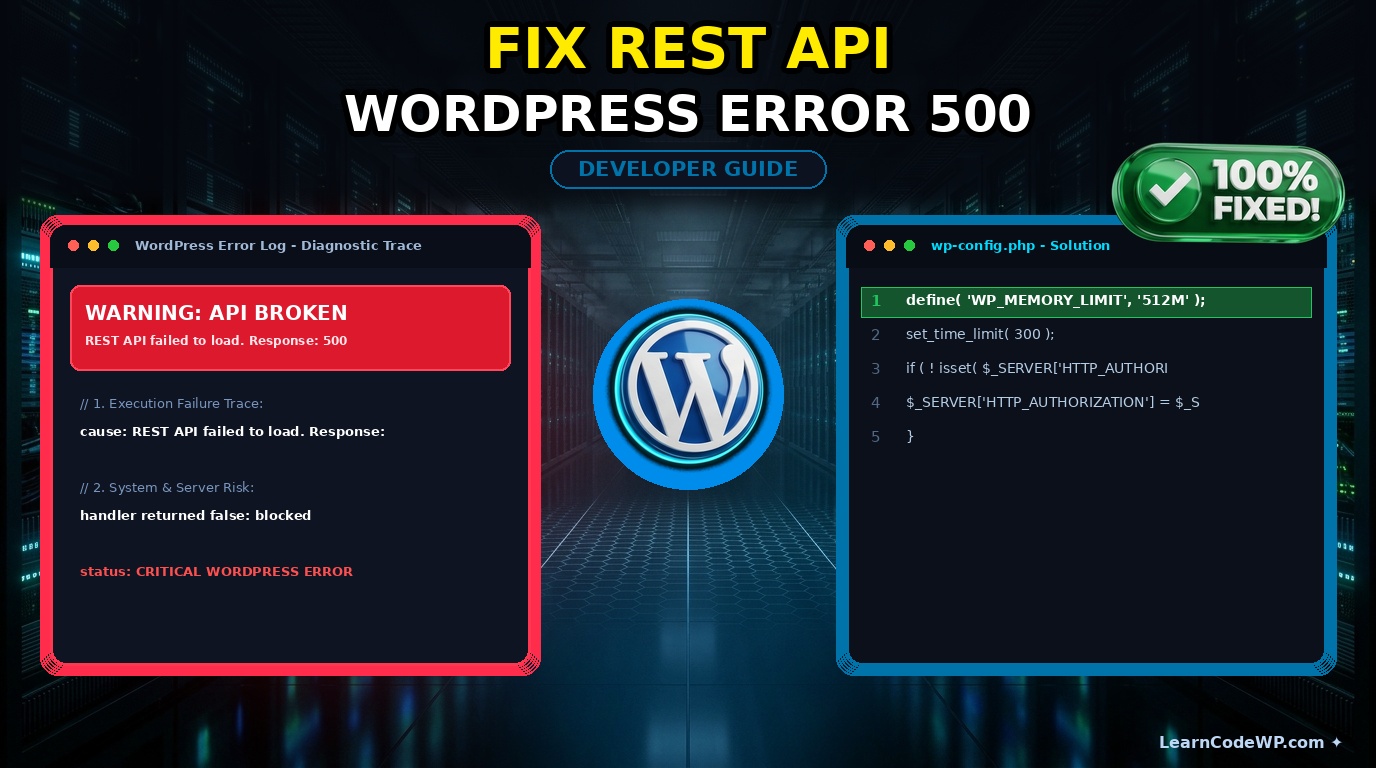

A broken wordpress rest api error can bring your entire Gutenberg block editor dashboard to a complete standstill. Here is what catches developers off guard: your site frontend loads just fine, but autosaves fail, widgets disappear, and the Site Health tool screams about loopback requests failing. Don’t just copy-paste this blindly—check your server config first.
A mistake I see developers make all the time in production is blindly disabling security plugins without analyzing the server error logs first. When the endpoint returns a 500 internal server error or a cURL error 28 timeout, your JavaScript application layer cannot synchronize state with the database. Let us break down why this happens and how to fix it permanently.
Why the WordPress REST API Encounters Critical Failures
Under the hood, WordPress relies on asynchronous HTTP requests via PHP cURL or the Streams API to query endpoints like /wp-json/wp/v2/posts. When your server blocks outgoing loopback requests, or when a badly written plugin throws an uncaught exception during the JSON serialization lifecycle, the entire application pipeline crashes.
Before tweaking configuration files, make sure you understand how related issues like a fix white screen of death wordpress scenario differ from API timeouts. While the White Screen of Death typically points to a fatal PHP parse error, REST API failures usually stem from restrictive .htaccess rules, misconfigured SSL certificates, or exhausted PHP execution timeouts.
How to Fix WordPress REST API Error Step by Step
Let us walk through a battle-tested diagnostic workflow to isolate and eradicate the root cause of your API failure.
Step 1: Inspect Nginx or Apache Rewrite Rules
Incorrect permalink structures or aggressive firewall rules often block authorization headers. Check your server configuration files. If you are running Nginx, ensure your location blocks correctly pass query strings to PHP-FPM, matching official Nginx Documentation standards.
nginx.conflocation / {
  try_files $uri $uri/ /index.php?$args;
}

location ~ \.php$ {
  include fastcgi_params;
  fastcgi_pass unix:/var/run/php/php8.2-fpm.sock;
  fastcgi_param SCRIPT_FILENAME $document_root$fastcgi_script_name;
}
Here is what actually happens under the hood: without the $args parameter in your try_files directive, query variables required by REST endpoints get stripped away before reaching WordPress.
Step 2: Increase Timeout Limits in wp-config.php
If your API responses time out because of heavy database queries or bloated third-party plugins, you must allocate more headroom. Add these lines to your core configuration file, right before the database settings.
wp-config.phpdefine( 'WP_MEMORY_LIMIT', '512M' );
set_time_limit( 300 );

// Prevent REST API authentication stripping on custom setups
if ( ! isset( $_SERVER['HTTP_AUTHORIZATION'] ) && isset( $_SERVER['REDIRECT_HTTP_AUTHORIZATION'] ) ) {
  $_SERVER['HTTP_AUTHORIZATION'] = $_SERVER['REDIRECT_HTTP_AUTHORIZATION'];
}
Line-by-line breakdown: Increasing WP_MEMORY_LIMIT prevents memory exhaustion during JSON payload generation. The authorization server variable check ensures that JWT or Application Passwords authentication headers survive Apache and Nginx redirection layers.
Sometimes, memory exhaustion manifests alongside unexpected data type warnings. If you notice notices piling up in your error logs, refer to our guide on how to fix php 8 undefined array key warnings to keep your debugging output clean.
Comparing REST API Diagnostic Methods
To determine whether your issue stems from client-side JavaScript or server-side restrictions, consult this comparison table:
| Error Symptom | Primary Root Cause | Recommended Action |
|---|---|---|
| cURL error 28: Operation timed out | Server firewall blocking loopback | Whitelisted server IP in security plugin |
| 401 Unauthorized Response | Missing Authorization headers | Check Nginx FastCGI configuration |
| 500 Internal Server Error | PHP fatal error in REST controller | Enable WP_DEBUG and inspect debug.log |
Troubleshooting & Gotchas
Even after fixing server rules, aggressive object caching layers like Redis or Memcached can serve stale REST API responses. Always flush your object cache and clear CDN edge node caches after modifying endpoints or permalink structures.
Another common gotcha involves mismatched WordPress core files. If a core update failed midway, some REST controller classes might be missing. Reinstalling WordPress core via WP-CLI using wp core update --force resolves missing file discrepancies instantly.
Frequently Asked Questions
Why is my WordPress site not loading block editor scripts?
When the block editor fails to load, it is almost always because the REST API endpoint responsible for fetching post data is returning a non-200 status code, such as a 403 Forbidden or 500 Server Error. Check your browser console network tab for failing /wp-json/ requests.
How do I test if my WordPress REST API is accessible?
Open a browser window and navigate directly to your site URL followed by /wp-json/. You should see a valid JSON response containing site details, available namespaces, and route listings. If this returns a blank screen or an error, your API is blocked.
Can security plugins break the WordPress REST API?
Yes. Many security plugins feature settings designed to restrict REST API access for unauthenticated users to prevent user enumeration. If your theme or page builder relies on public endpoints, these security hardening rules will break core functionality.