
How to fix elementor not loading is one of the most frustrating bottlenecks you will encounter as a WordPress professional. Here is what catches developers off guard: you log into a client site, click ‘Edit with Elementor’, and the editor spins infinitely on a grey loading screen. Don’t just copy-paste this blindly—check your server config first. Let us look at why this happens and how to resolve it permanently.
Understanding the Root Cause of Elementor Loading Failures
When the builder panel refuses to initialize, the breakdown typically happens during the admin-ajax.php execution cycle or within REST API routing. A mistake I see developers make all the time in production is simply increasing the PHP memory limit in wp-config.php without checking whether the host actually allocates that resource. If your server runs out of RAM or hits execution time thresholds, the ajax request drops silently, leaving your browser waiting for a JSON payload that never arrives.
Before diving into complex overrides, you should review your server error logs. Often, memory exhaustion errors or deprecated function calls from third-party addons trigger fatal application shutdowns. If your site has underlying API routing bottlenecks, you might also want to review our guide on how to fix wordpress rest api error like a senior dev to ensure your backend communication endpoints are fully operational.
Step-by-Step Fix: Memory Limits and .htaccess Adjustments
Let us fix the resource allocation issue. Elementor is a heavy visual framework that requires adequate headroom. Official WordPress developer documentation recommends maintaining at least 256M of PHP memory for modern page builder environments.
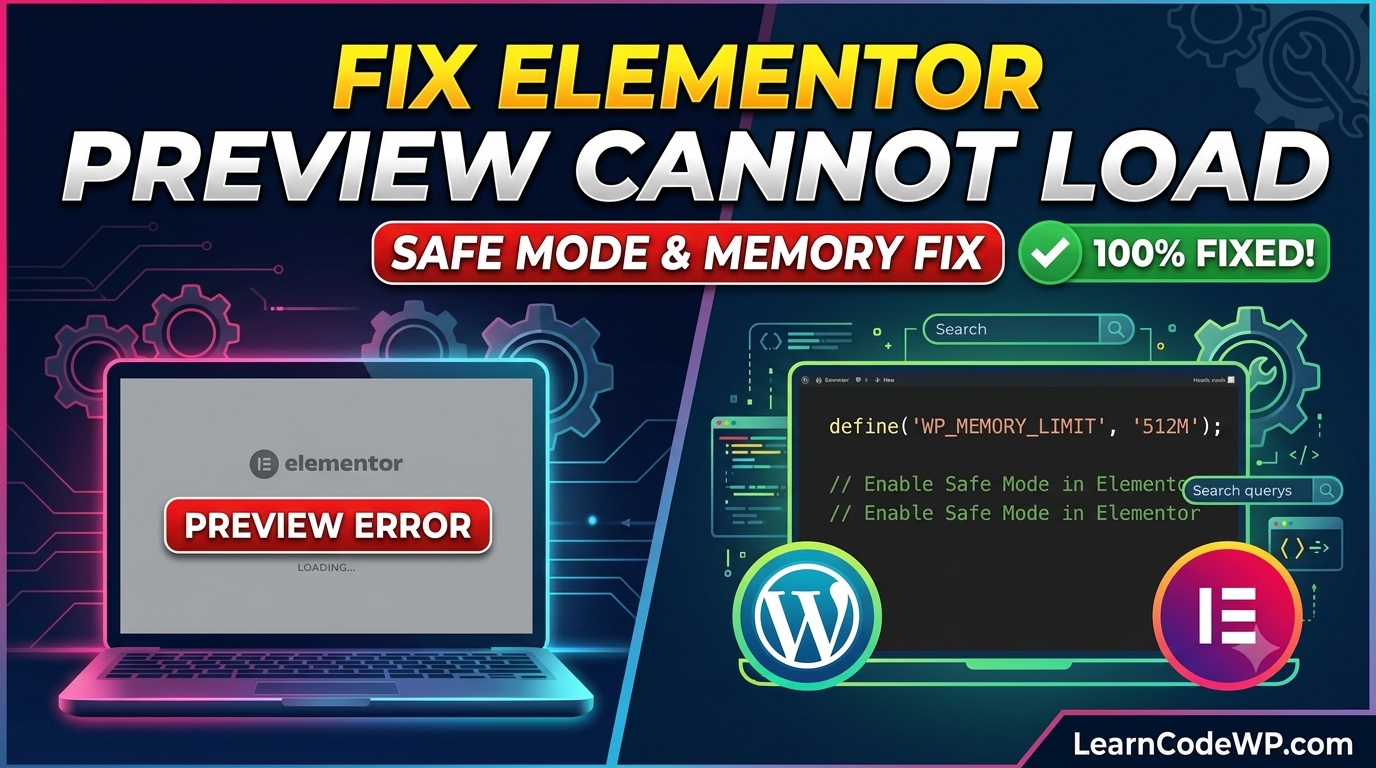
wp-config.phpdefine( 'WP_MEMORY_LIMIT', '512M' );
define( 'WP_MAX_MEMORY_LIMIT', '512M' );
set_time_limit( 300 );
Here is what actually happens under the hood when you add these lines. The first directive forces WordPress to request 512 megabytes of RAM from the host environment for frontend operations, while the second allocates identical resources specifically for the admin dashboard where the Elementor editor runs. If your host caps memory at a lower tier, these constants will be ignored or trigger an internal server error. If your site throws fatal allocation notices, reference our detailed breakdown on fix wordpress php fatal error allowed memory size exhausted for advanced php.ini tuning techniques.
Why Is Elementor Not Loading? Conflict Resolution and Editor Modes
When clients ask why is elementor not loading on my computer or why is elementor editor so slow, the culprit is usually a rogue plugin conflict or corrupted .htaccess rewrite rules. You need to isolate the DOM by disabling all non-essential plugins except Elementor and WooCommerce (if applicable). Next, navigate to Elementor settings in your dashboard, select the Advanced tab, and toggle the ‘Switch Editor Loader Method’ to ‘Enable’. This forces the iframe to load via alternative routing, bypassing strict security headers or mod_security rules that often block REST requests.
| Diagnostic Method | What It Checks | Recommended Action |
|---|---|---|
| Browser Console | JavaScript & CORS errors | Look for blocked admin-ajax.php requests |
| Error Logs | PHP fatal errors | Trace out-of-memory or syntax issues |
| DOM Inspector | Iframe response headers | Verify X-Frame-Options configurations |
Troubleshooting & Gotchas: Caching and Server Modules
A common oversight during debugging is failing to clear server-side object caching or CDN edge caches. If you modify your .htaccess file or update plugin versions, stale scripts cached by Nginx or Apache will continue serving broken JavaScript dependencies to your browser. Always flush Redis, OPcache, and browser caches entirely before testing the editor again. Check your server’s PHP handler as well; switching from Apache to an optimized Nginx and PHP-FPM stack frequently resolves timeout issues tied to heavy page builders.
Frequently Asked Questions
Why is Elementor so slow when editing large pages?
Elementor loads a massive DOM tree into your browser’s memory alongside real-time widgets. High DOM node counts and heavy background scripts degrade performance. Optimize your database, minimize nested sections, and keep your PHP version up to date to maintain responsive editing speeds.
Why is Elementor not working after a recent core update?
Version mismatches between Elementor Core and Elementor Pro frequently break frontend execution. Ensure both plugins are updated simultaneously to their latest stable releases, and clear your site transients via your caching plugin or WP-CLI.
How do I check if a plugin is conflicting with Elementor?
Deactivate all plugins except Elementor. If the editor loads successfully, reactivate your plugins one by one while testing the editor interface to pinpoint the exact piece of software causing the JavaScript or AJAX conflict.