
Knowing how to fix PHP errors WordPress instances spit out when a plugin updates or custom code goes rogue separates junior developers from senior engineers. Here is what catches developers off guard: a minor syntax quirk or an incompatible function call can completely lock you out of the wp-admin dashboard. Instead of panicking, you need a systematic method to locate, isolate, and patch the offending code snippet.
A mistake I see developers make all the time in production is leaving display_errors turned on in a live production environment. This exposes sensitive database credentials and file paths to end users. Before diving into code, let’s explore why these warnings occur and how to diagnose them safely.
Why PHP Errors Break WordPress Sites
PHP powers every core function, theme template, and plugin in the WordPress ecosystem. When a script halts execution due to a fatal error, parse error, or a sudden memory exhaustion, PHP throws a diagnostic message. Understanding official PHP error documentation helps you interpret these server logs accurately.
If your site goes blank instead of throwing a readable exception, you are likely dealing with the dreaded White Screen of Death. Depending on your hosting provider, you might need to inspect your server’s error_log file or enable WP_DEBUG inside your configuration files. If you’ve ever encountered related memory boundaries, you might want to review our guide on fix wordpress php fatal error allowed memory size to adjust your server limits properly.
How to Fix PHP Errors WordPress: Step-by-Step Diagnostic
Let’s look at how to fix PHP errors WordPress environments generate when a theme modification or custom plugin throws a fatal runtime exception. We will use a secure logging approach inside your configuration file.
wp-config.phpdefine('WP_DEBUG', true);
define('WP_DEBUG_DISPLAY', false);
define('WP_DEBUG_LOG', true);
Here is what actually happens under the hood when you apply these settings:
1. WP_DEBUG activates WordPress debugging mode across the entire core system.
2. WP_DEBUG_DISPLAY is set to false to prevent raw stack traces from rendering directly on your frontend pages.
3. WP_DEBUG_LOG forces WordPress to write all incoming warnings, notices, and fatal errors directly into a text file located at /wp-content/debug.log.
How to Fix a PHP Error Was Encountered
When users report seeing a generic warning message stating that a PHP error was encountered, your first stop should be reviewing the debug.log file via SFTP or SSH. For deeper architectural issues, such as broken asynchronous calls, you can check out how we troubleshoot a wordpress rest api error to ensure data flows smoothly between your database and frontend scripts.
Comparative Overview of WordPress Error Types
Different PHP diagnostics require distinct troubleshooting workflows. Review the table below to quickly identify what type of issue you are facing:
| Error Type | Common Cause | Severity | Recommended Fix |
|---|---|---|---|
| Parse Error | Syntax typo, missing semicolon, unclosed bracket | Fatal (Stops execution) | Fix syntax in file via SFTP/SSH |
| Fatal Error | Calling undefined function or class method | Fatal (Stops execution) | Deactivate plugin or patch code |
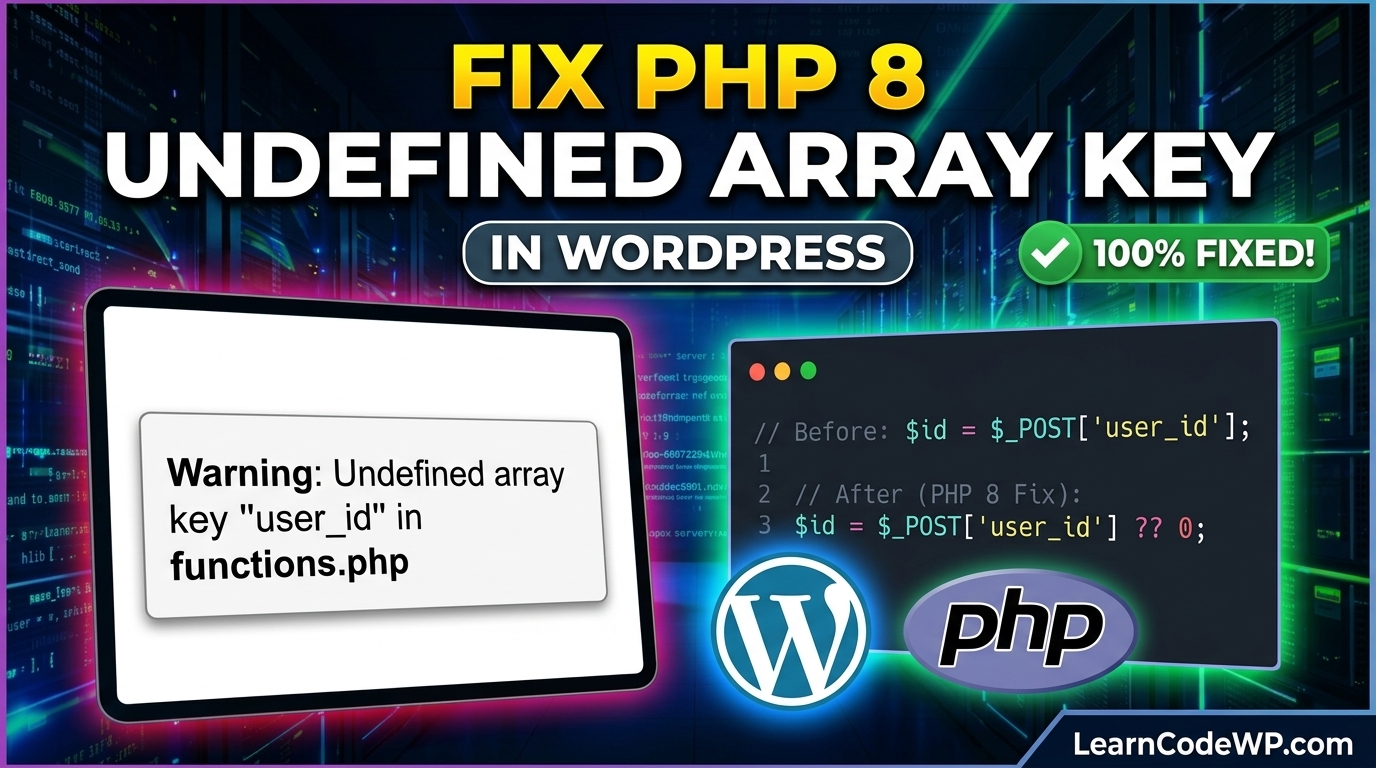
| Notice / Warning | Using uninitialized array key or deprecated hook | Non-Fatal (Script continues) | Update code to modern standards |
| Memory Exhaustion | Infinite loops or heavy media processing | Fatal (Stops execution) | Increase PHP memory limit |
Troubleshooting & Gotchas: Avoiding Common Pitfalls
Don’t just copy-paste this blindly—check your server config first. Many managed WordPress hosts override local PHP configurations via cPanel or custom hosting dashboards. If you increase memory limits in wp-config.php and still experience crashes, your host’s global php.ini file might be capping the allocation.
Another common pitfall is file permissions. If the web server user (such as www-data or nginx) lacks write permissions to the wp-content directory, WordPress cannot generate or update the debug.log file, leaving you blind to active runtime warnings.
Frequently Asked Questions
How to fix parse error in PHP?
A parse error means PHP encountered unexpected characters or invalid syntax during compilation. Open the exact file path referenced in the error message, locate the offending line number, and check for missing semicolons, stray curly braces, or unclosed quotation marks.
How to fix 500 internal server error in PHP?
A 500 Internal Server Error is often a catch-all response for unhandled PHP exceptions or a corrupted .htaccess file. Rename your .htaccess file to temporarily disable custom rewrite rules, and check your server error logs to pinpoint the exact backend failure.
Where are WordPress error logs stored?
By default, when debug logging is enabled via your configuration file, WordPress stores diagnostic logs inside the /wp-content/debug.log file. You can download or view this file using any standard FTP client or file manager.