
Here is what catches developers off guard: you spend hours tuning a custom landing page in Elementor, click the green Update button, and hours of layout work vanish the second you refresh. A mistake I see developers make all the time in production is blindly purging CDN caches without diagnosing why the REST API payload dropped midway. If you are struggling with the dreaded fix elementor widget data not saving issue, you are dealing with a silent breakdown between the editor’s frontend Backbone marionette views and your server’s database storage pipeline.
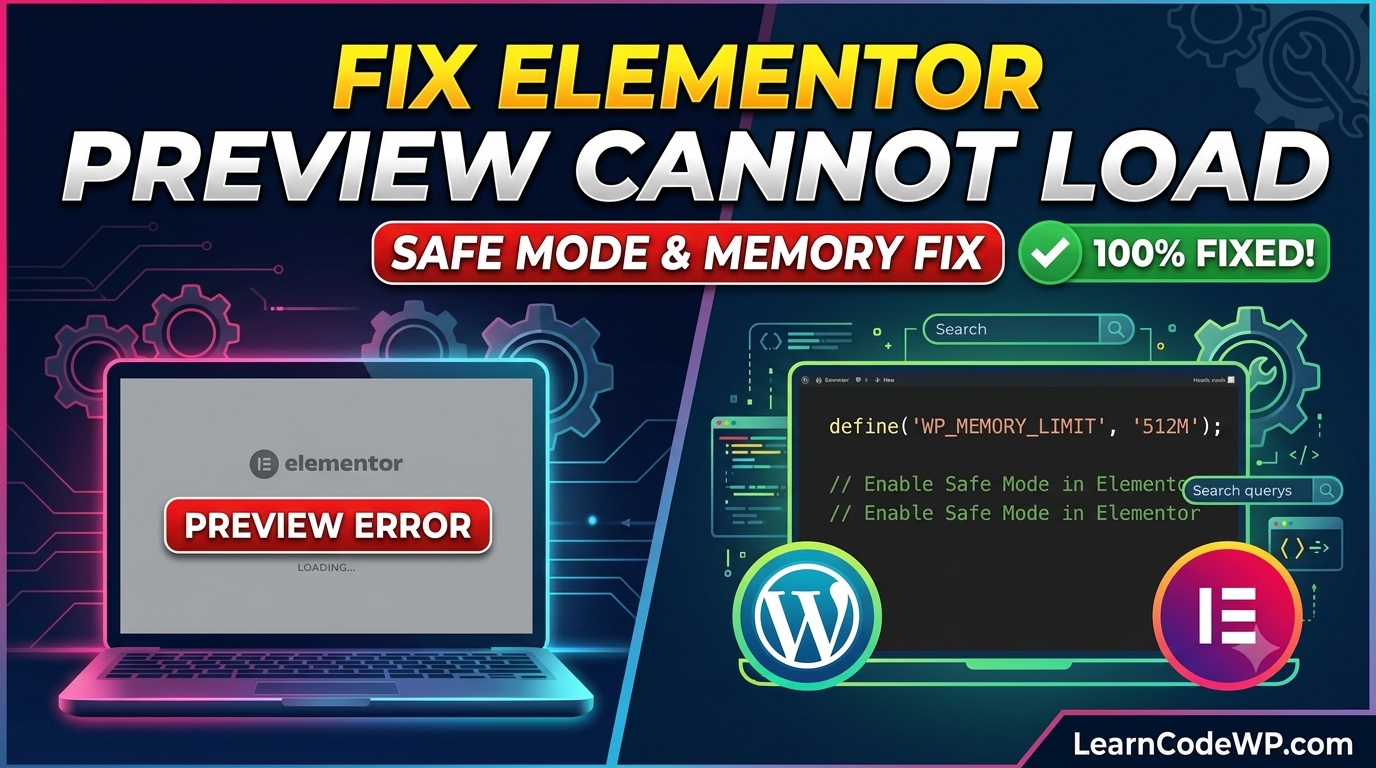
Before diving into complex server rewrites, ensure you have ruled out other common initialization failures. Sometimes, editor corruption mimics storage errors, much like what happens when you attempt to resolve the fix elementor preview could not be loaded glitch. Let us examine why this happens, how to inspect your browser console for dropped JSON payloads, and how to patch your environment safely.
Understanding Why Elementor Widget Data Fails to Save
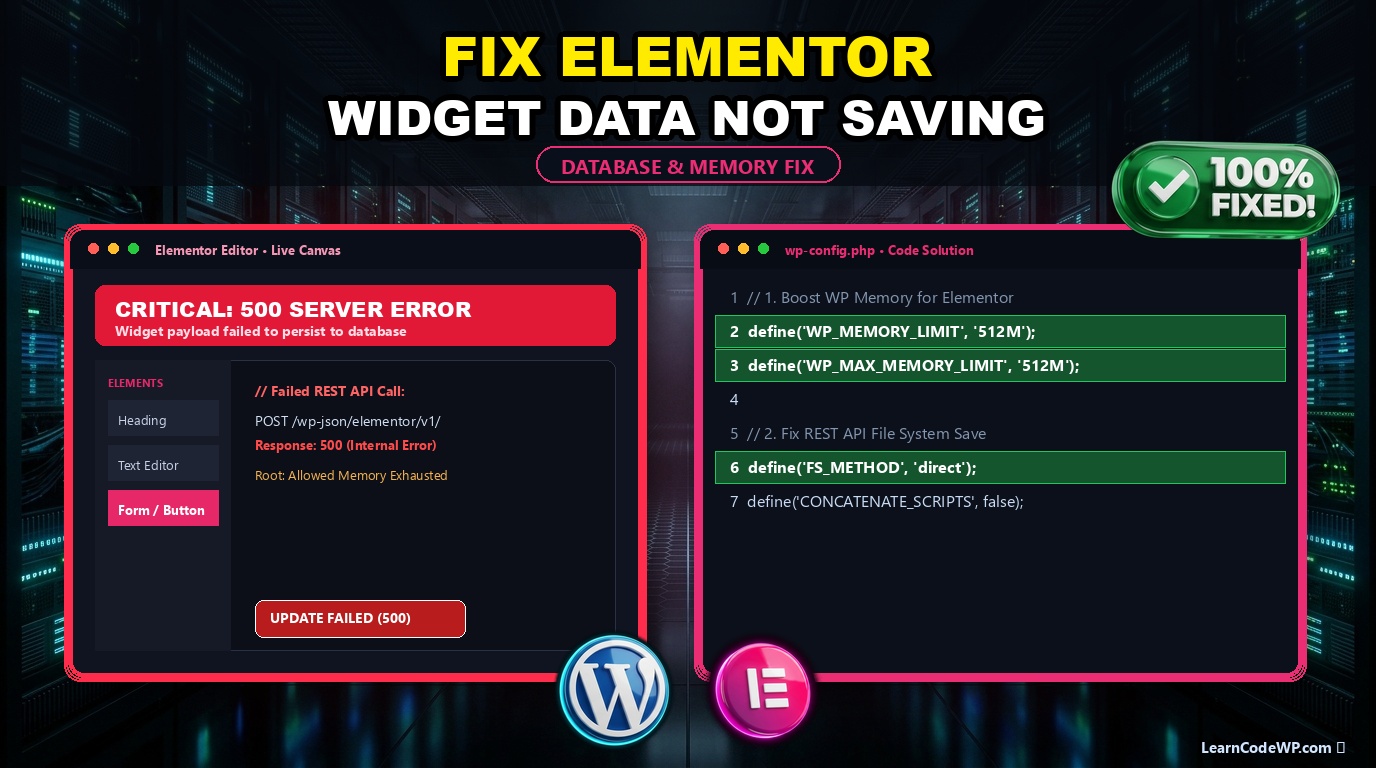
Here is what actually happens under the hood during an Elementor save action. When you click update, Elementor bundles your widget settings into a massive JSON object and fires a POST request to the WordPress REST API endpoint (`/wp-json/elementor/v1/documents/`). If this request returns a 403 Forbidden, a 500 Internal Server Error, or gets blocked by a strict mod_security rule, your changes never touch the `wp_postmeta` table.
Common culprits include restrictive PHP memory limits, aggressive object caching plugins intercepting post meta hooks, or max_input_vars limits being breached on pages with hundreds of nested sections. If your server truncates long POST bodies, your serialized JSON gets chopped in half, resulting in silent database rejection. For deeper PHP configuration insights, consult the official PHP Documentation regarding memory management and input variables.
Step-by-Step Fix for Elementor Widget Data Not Saving
Let us fix your server configuration to handle large administrative payloads correctly. You will need access to your hosting control panel, SSH, or file manager. We will adjust PHP parameters and verify REST API route accessibility.
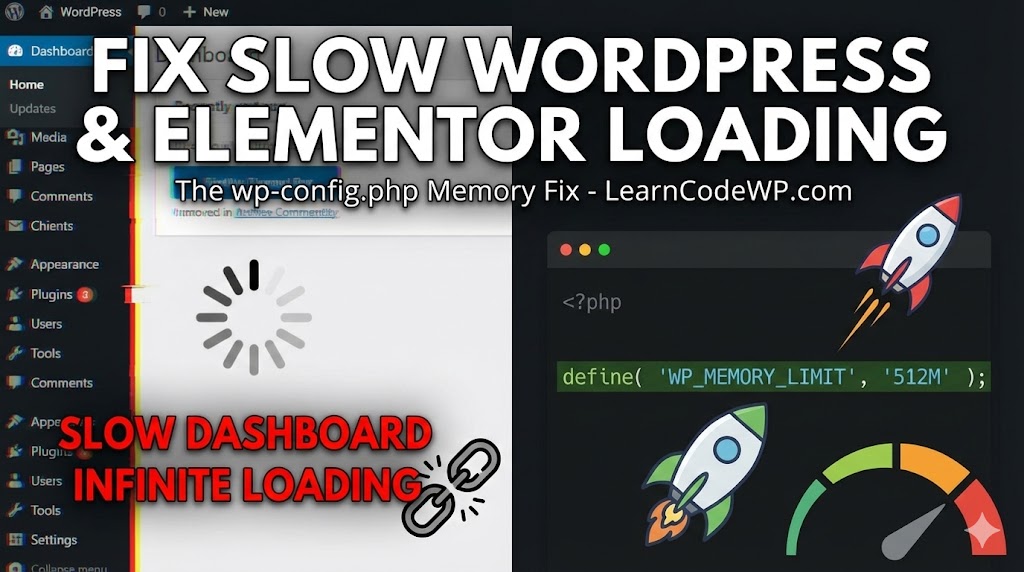
wp-config.phpdefine( 'WP_MEMORY_LIMIT', '512M' );
define( 'FS_METHOD', 'direct' );

// Prevent REST API blocks on complex layouts
if ( !defined( 'CONCATENATE_SCRIPTS' ) ) {
    define( 'CONCATENATE_SCRIPTS', false );
}
Next, check your Nginx or Apache server blocks. If you run a custom Nginx configuration, you might encounter issues similar to when you fix nginx upstream sent too big header errors because Elementor requests exceed standard buffer sizes. Update your Nginx server block with these directives:
nginx.confclient_max_body_size 256M;
fastcgi_buffers 16 16k;
fastcgi_buffer_size 32k;
fastcgi_read_timeout 300;
client_body_buffer_size 128k;
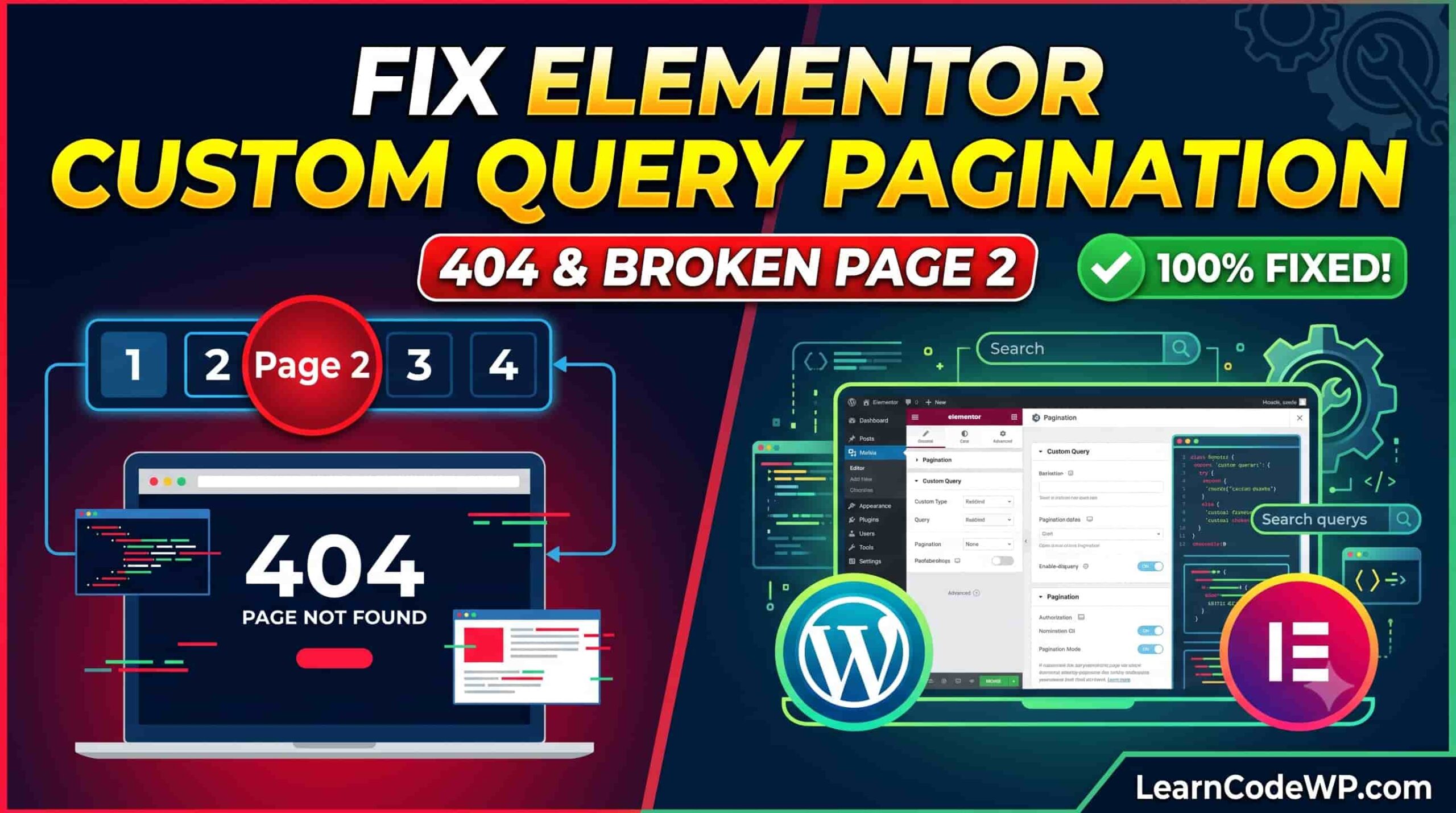
After updating your web server configuration, restart your PHP-FPM and Nginx services. If you also manage custom queries or pagination elements on those same templates, check out our guide on fix elementor custom query pagination to ensure your database queries do not timeout during autosaves.
Code Explanation and Line-by-Line Breakdown
Let us break down what each line of our configuration adjustments achieves in production environments:
1. WP_MEMORY_LIMIT to 512M: Elementor processes heavy DOM trees in memory during JSON serialization. Default limits of 128M or 256M cause silent out-of-memory fatal crashes mid-save.
2. client_max_body_size 256M: Modern WordPress pages contain immense amounts of nested repeater data and inline SVGs. Restrictive default web server limits will drop incoming POST requests instantly.
3. FastCGI Buffer Adjustments: Ensures Nginx has adequate buffer allocation to read large incoming JSON payloads from the Elementor editor interface without throwing truncation errors.
Comparative Troubleshooting Matrix
Use this quick diagnostic table to match your exact symptoms with the correct server or plugin intervention:
| Symptom | Root Cause | Recommended Fix |
|---|---|---|
| Infinite spinning wheel on save | REST API blocked by security plugin | Whitelisted /wp-json/ endpoints in Wordfence/Cloudflare |
| Changes vanish after hard refresh | PHP max_input_vars or memory exhausted | Increase limits in php.ini and wp-config.php |
| 500 Server Error on Update button | Nginx client_max_body_size too low | Add buffer and body size rules to nginx.conf |
Troubleshooting & Gotchas
Don’t just copy-paste this blindly—check your server error logs (`/var/log/nginx/error.log` or your hosting panel equivalent) before editing files. A frequent trap developers fall into is ignoring browser developer console network tabs. Always open your browser’s Inspector, switch to the Network tab, click Update in Elementor, and inspect the red failed request. If the response header displays a 406 Not Acceptable status, your web host’s Web Application Firewall (WAF) is flagging Elementor’s JSON payload as a false-positive SQL injection attempt. You must contact your host to whitelist the specific rule ID.
Frequently Asked Questions
Why does Elementor save successfully on small pages but fail on large ones?
Large pages generate massive JSON payloads that exceed default PHP `post_max_size`, `max_input_vars`, or Nginx `client_max_body_size` thresholds. When these limits are breached, the server drops part of the request data, leading to incomplete database writes.
Could a security plugin block Elementor from saving widget data?
Yes. Firewalls like Wordfence, Sucuri, or Cloudflare ModSecurity rules often mistake Elementor’s administrative POST requests containing HTML and CSS strings for malicious attacks. Check your security plugin live traffic logs for blocked requests.
Where can I verify official WordPress coding standards for database transactions?
You can review core database interaction guidelines directly on the WordPress Developer Resources portal for best practices on post meta handling and REST API endpoints.